Skip to content
Inovatica Fleet Manager

Manage your AGV and AMR fleet.

From robot monitoring to transport coordination.

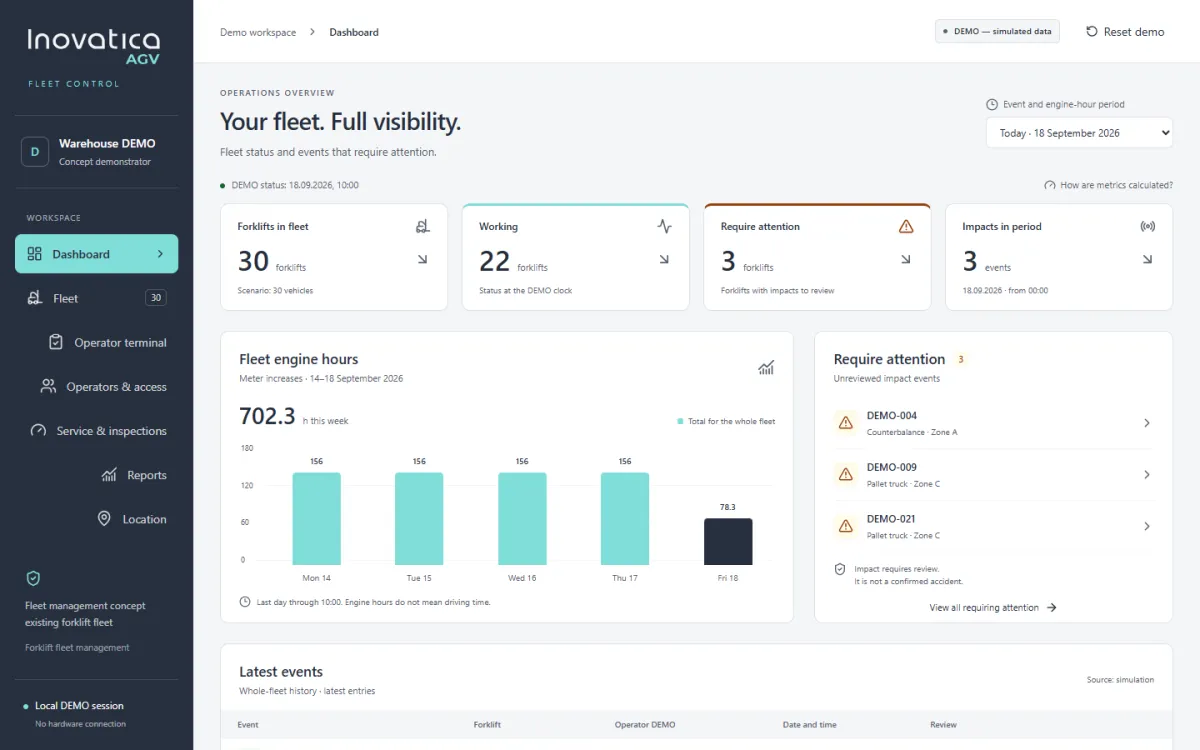
Fleet Manager brings the factory map, tasks and robot statuses into one place. Define transport processes and analyse fleet utilisation.

01

Monitor robots

Connect a vehicle’s map position with its task, status and alarms.

02

Define processes

Set the sequence of transport tasks and conditions for moving to the next step.

03

Analyse results

Check completed transports, cycle times and periods when robots were waiting.

See the fleet in motion

AGV / AMR · Fleet Manager
From monitoring to analysis

From factory activity to the next decision

The map shows where transport takes place. Vehicle details explain its status, the editor defines process logic, and reports help you review results. Open a screenshot to explore the interface.

Example interface screens using demonstration data.

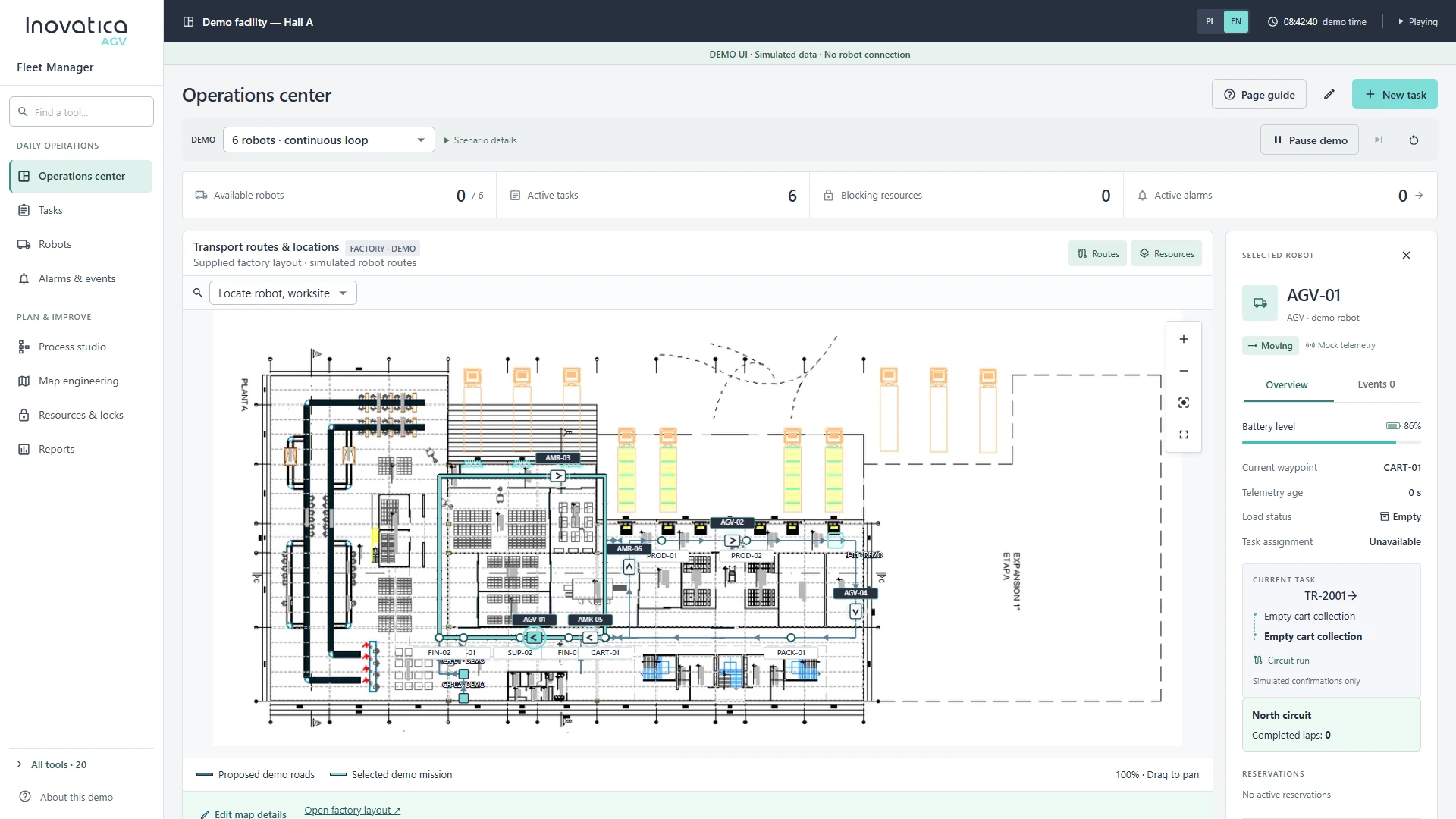
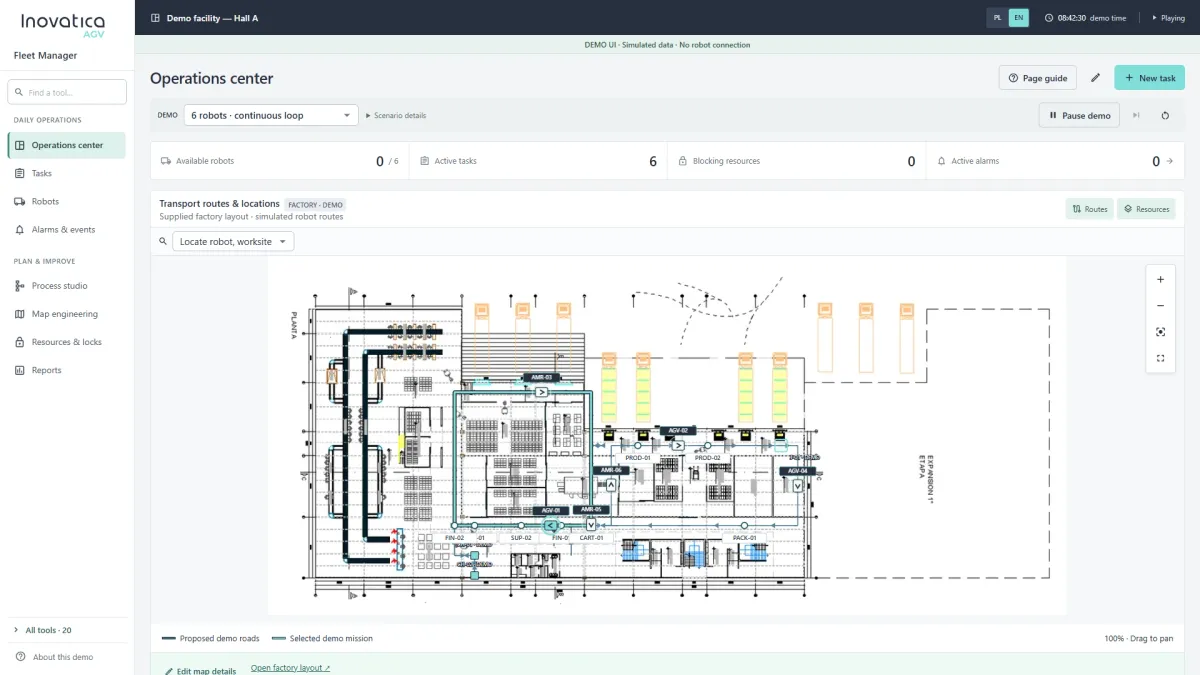
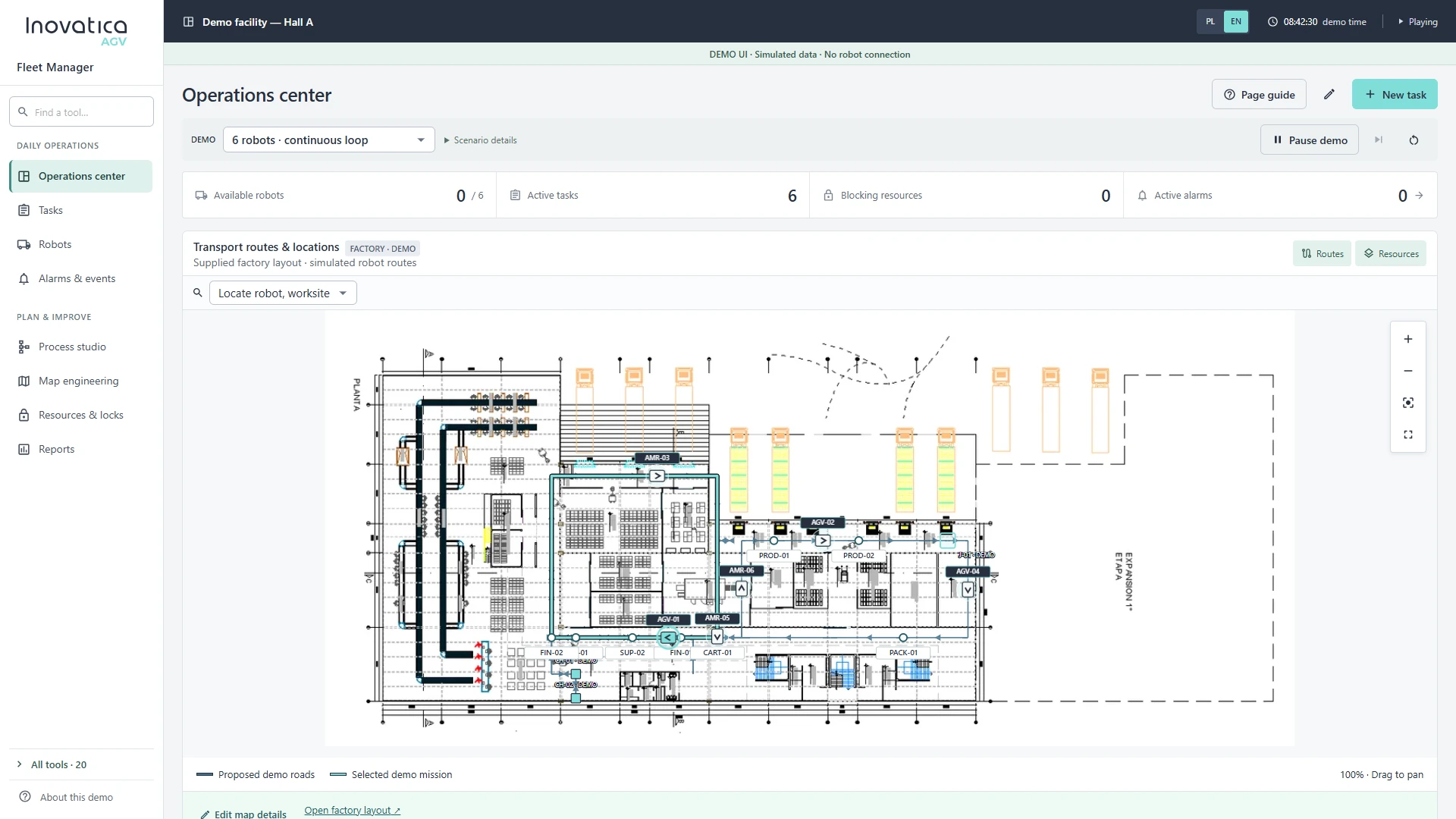
Fleet Manager operations center with a factory floor plan, six robots and a task overview Enlarge screen
01 · Operations center

See what is happening on the floor

Start with the factory map instead of searching across separate views. Robot positions and routes sit alongside a summary of tasks, resources and alarms, helping you identify which transport needs attention.

  • Vehicle positions and routes
  • Active tasks and robot availability
  • Alarms and blocking resources
Factory map and the AGV-01 robot details panel in Fleet Manager Enlarge screen
02 · Vehicle status

Go from the map to an individual robot

Select a vehicle to inspect its panel without losing sight of the factory floor. Movement status, battery, position and current task put the device’s condition in the context of the transport operation.

  • Robot status and battery level
  • Current waypoint and load status
  • Task, events and reservations
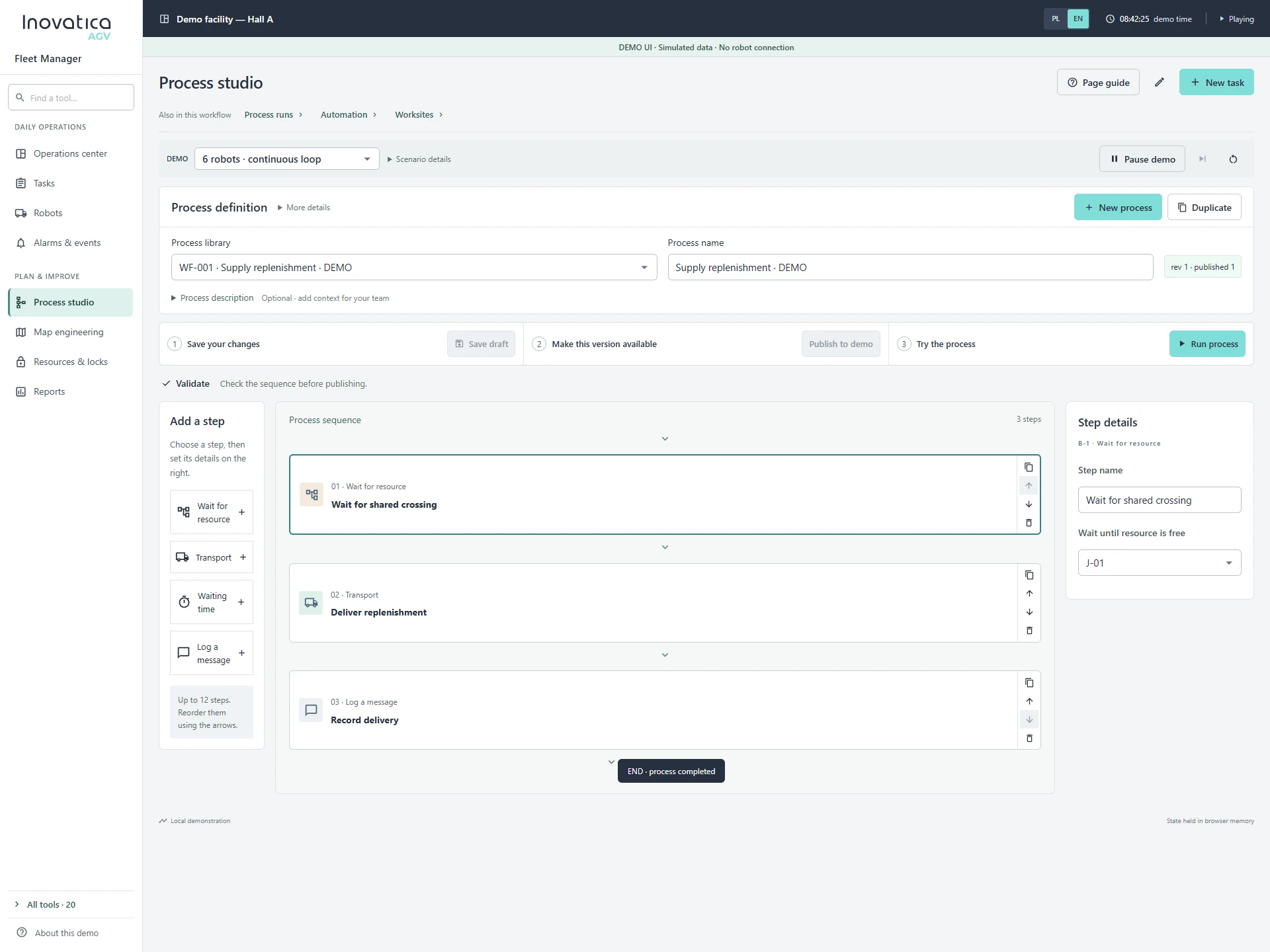
Process Studio sequence for waiting for a resource, transporting and recording a delivery Enlarge screen
03 · Process design

Turn a process into a clear sequence

Transport involves more than moving from A to B. The editor describes waiting for a free resource, carrying a load and recording a delivery event. The team can review each action and the conditions for the next step.

  • Transport, waiting and event steps
  • Step settings alongside the sequence
  • Process definition review and validation
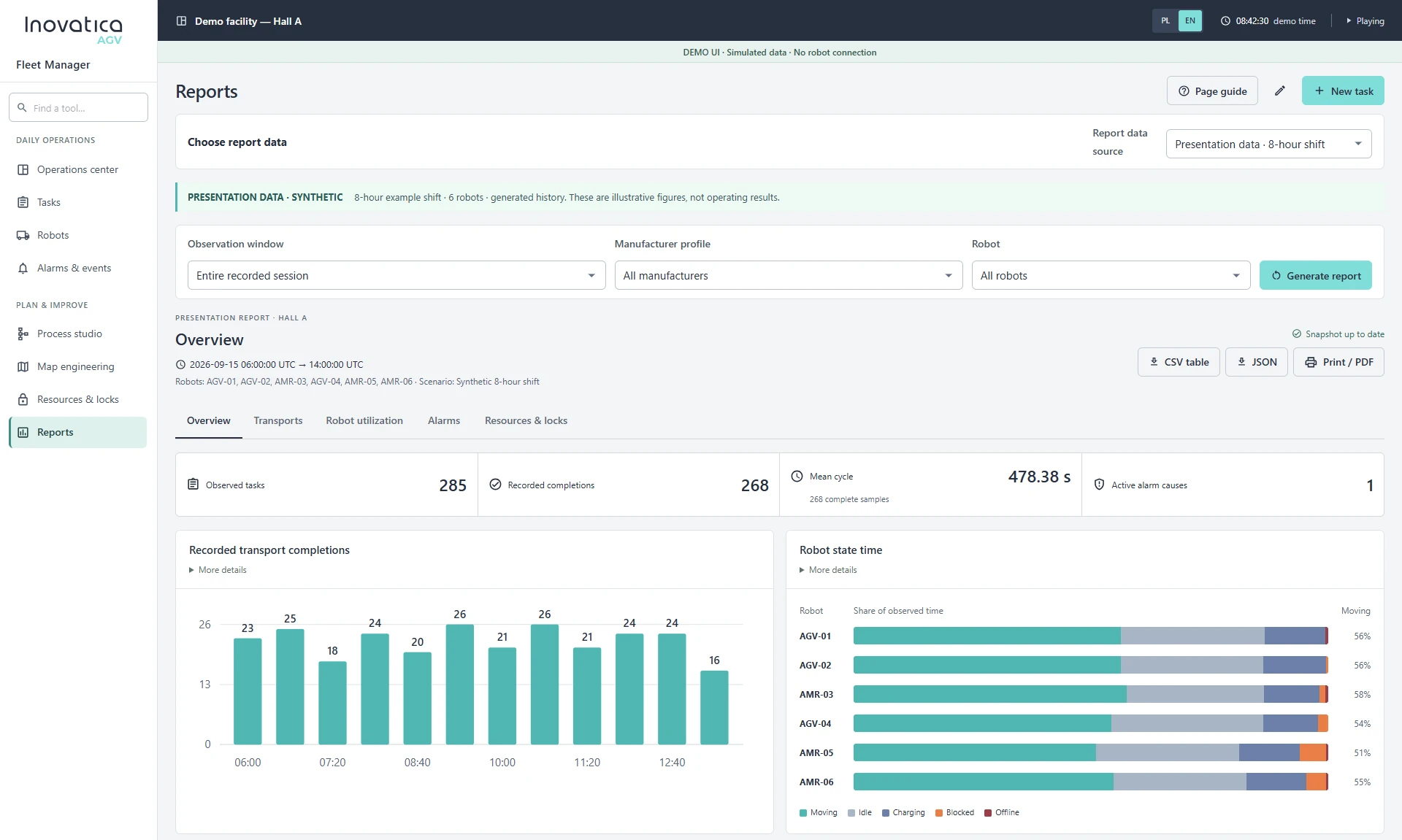
Sample operational report with transport completion and robot utilization charts Enlarge screen
04 · Operational reports

Find where transport loses time

Compare completed transports, cycle times and vehicle utilisation over a selected period. Review these alongside alarms and resource locks to identify areas that need closer investigation.

  • Transports, cycle times and robot states
  • Time-period and vehicle filters
  • CSV and JSON exports and printable reports
Software for your operation

Connect your fleet to your process

An order from a business system needs to become a transport task and return an update on its completion. We begin by identifying task sources, pick-up and drop-off points, and rules for shared resources. WMS, MES or ERP integration is scoped to your infrastructure.

WMSMESERPAGV / AMR
  1. Task sources

    Define where orders originate and which updates need to return to the site’s business systems.

  2. Process rules

    Map pick-up and drop-off points, priorities and shared resources.

  3. Deployment growth

    Plan the first phase and further areas of automation as the fleet expands.

Next step

Explore a clearer way to manage your fleet

We will review your vehicles, transport workflows, task sources and integration needs to define the right system scope for your site.